
This guide includes the following topics:
Introducing the Image Service
The ENGL Image Service simplifies the creation of an ENGL compatible Sysprep'd base image (WIM or ZMG) without the need for a local reference machine. Image service is cloud-based and creates the base image using Imaging Toolkit.
It's not compulsory to use the Image Service, as base images can be manually built and captured using Imaging Toolkit. However, there are some great advantages to using the Image Service. You'll find that the Imaging Toolkit documentation walkthroughs assume the Image Service is being used as it's the easiest and quickest way to deploy Windows.
Depending on your Imaging Toolkit subscription level (Standard, Advanced or Enterprise), you will have a number of pre-built base image downloads and custom base image requests that can be used throughout your subscription year. When your Imaging Toolkit subscription is renewed, the Image Service allowances will be reset. To check your current allowance, visit the ENGL > Account > Image Service.
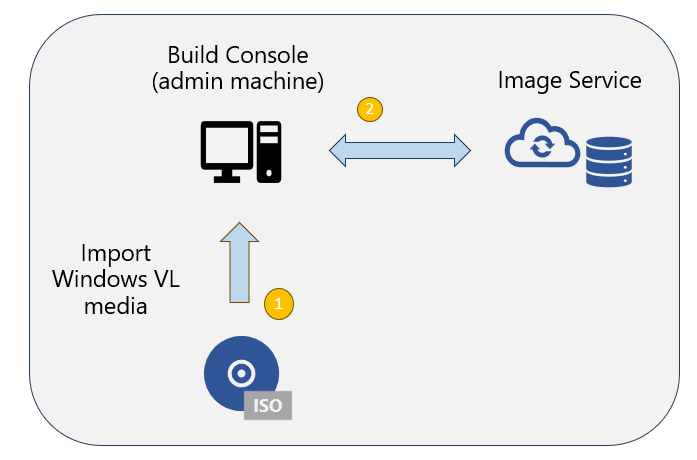
Pre-built vs Custom
On a monthly basis, Microsoft updates the ISO media for supported Windows versions that include the latest Cumulative Update (CU).
ENGL generates pre-built Windows Enterprise base images for Windows 11 and 10 using the current month updated media and one month prior updated media. Custom base image requests can be made for any Windows business edition.
You are required to have imported identically matching Windows VL media into Build Console including matching "updated month/year" and media language.
| Type | Windows versions (VL) | Windows editions | Built-in AppX packages | Image format |
| Pre-built | 11 25H2, 11 24H2, 10 23H2 | Enteprise | All except Xbox | WIM / ZMG |
| Custom | 11 25H2, 11 24H2, 10 23H2 | Any business edition | Selectable | WIM / ZMG |
Using the Image Service
The following steps can be used to download a pre-built or custom base image.
- Visit the Image Service web page to check which Windows versions, editions and languages are available.
- Download the latest "updated" Windows VL media ISO from your Microsoft portal to the Build Console machine.
- Mount the ISO on the Build Console machine and import it into the File Library.
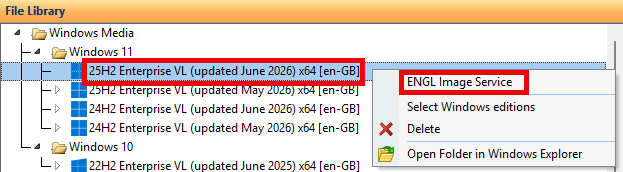
Note: During import ensure Copy (to File Library) is selected and the required Windows edition is selected. - Select the required Windows version / edition, then right-click, then select ENGL Image Service.
- In the Image Service window, your current pre-built download and custom request allowance will be displayed, together with the Windows media version / edition selected in the File Library.
- To download a pre-built base image matching your media, select the pre-built base image and click Download.
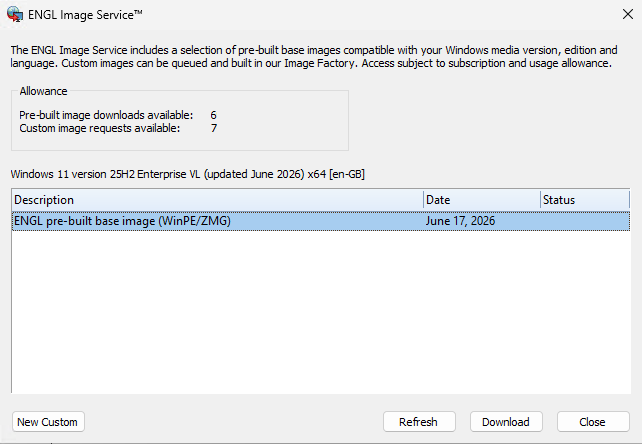
- To queue the creation of a custom base image using the ENGL Image Factory, click New Custom.
Note: By default no built-in packages will be included. If you're unsure of what to exclude, we recommend including all packages as some applications may have dependencies.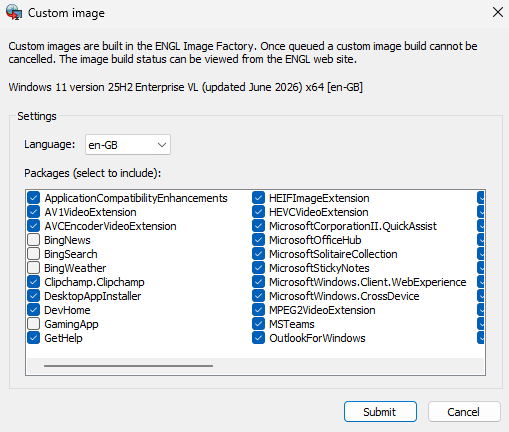
- The downloaded base image will appear in the File Library with it's parent Windows media and edition.
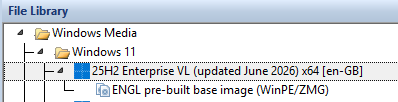
- Open a project, select the Expert View tab, then select Windows > Version and check the Windows version / edition matches the media and pre-built or custom base image you wish to deploy.
- Save and validate the project.
- Open Deployment Wizard, then at the Deployment Tasks page, select Base image preparation, then click Next.
- At the Base Image Creation page, select ENGL Image Service and select the base image, then click Next.
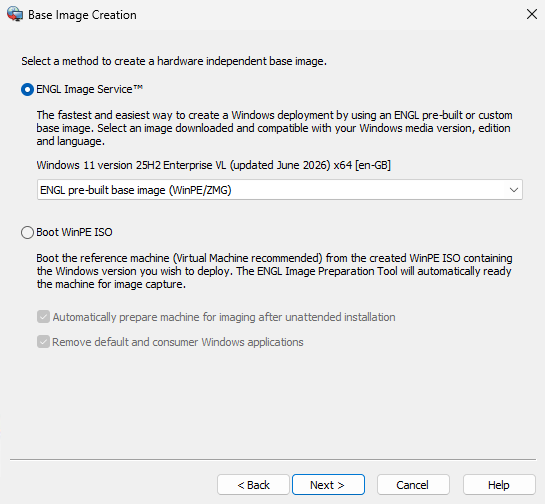
- At the Progress page, click Next to copy the base image to the local OS folder.
- Copy the new base image to your images server.
- If the Windows version has changed for your project, you may need to update the TFTP zimfiles\projects.ini to ensure it has the correct base image filename.
- Test the deployment