
The Build Console Boot Media Creation Wizard enables creation of a bootable ISO or USB pen drive for use when PXE boot services are not available or supported.
TABLE OF CONTENTS
- Requirements
- WinPE Boot Media Wizard reports an error when formatting the USB pen drive
- WinPE Boot Media Wizard created ISO converted to USB fails to find englboot.ini
Requirements
- Imaging Toolkit 14.0.1 or later
WinPE Boot Media Wizard reports an error when formatting the USB pen drive
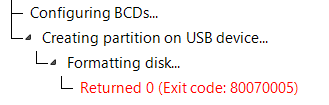
Procedure
Complete the following steps to wipe the USB pen drive before running the WinPE Boot Media Wizard:
- Open an Administrator command prompt on the Build Console machine.
- Run diskpart then enter the following commands.
- list disk and note the number of the USB pen drive.
NOTE: Be very careful when selecting the disk number to ensure you correctly identify the USB pen drive. - select disk <number>
- clean
- exit to return to the command prompt
- Launch the WinPE Boot Media Wizard and select the USB pen drive
The WinPE Boot Media Wizard will complete successfully.
WinPE Boot Media Wizard created ISO converted to USB fails to find englboot.ini
After creating a bootable ISO using the WinPE Boot Media Wizard, then converting it to USB using an ISO>USB utility, the USB pen drive will boot into ENGL WinPE but fails to find the englboot.ini.
|
Procedure
Complete the following steps to ensure the USB will boot to the ENGL Imaging Front-end (Zim).
- Attempt to boot the USB pen drive.
- After ZimLoader fails to find the englboot.ini, check the x:\zimbin\zimloader.log to determine the system boot drive e.g. "E:\".
[Zim Loader]   Boot type: USB
[Zim Loader]   System boot drive: E:\
[Zim Loader] Warning: Unable to find E:\englboot.ini
- Open a WinPE command prompt, and copy X:\englboot.ini to the system boot drive root.